Every device connected to the internet has a unique identifier called an IP address. Whether you're browsing websites, streaming videos, or sending emails, your IP address is constantly at work. Understanding how to check your IP address and what to do with it can help you troubleshoot network issues, enhance your online security, and better understand how the internet works. In this guide, we'll show you how to find your IP address and explore the practical ways you can use this information to your advantage.
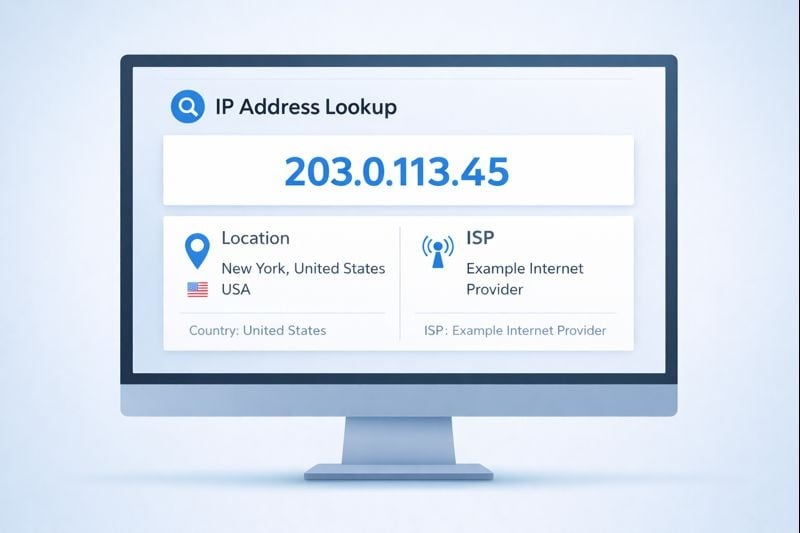
What Is an IP Address and Why Does It Matter?
An IP address (Internet Protocol address) is a numerical label assigned to every device that connects to a computer network. Think of it as your device's home address on the internet. It allows other devices and servers to find and communicate with your computer, phone, or tablet.
There are two main types of IP addresses you should know about:
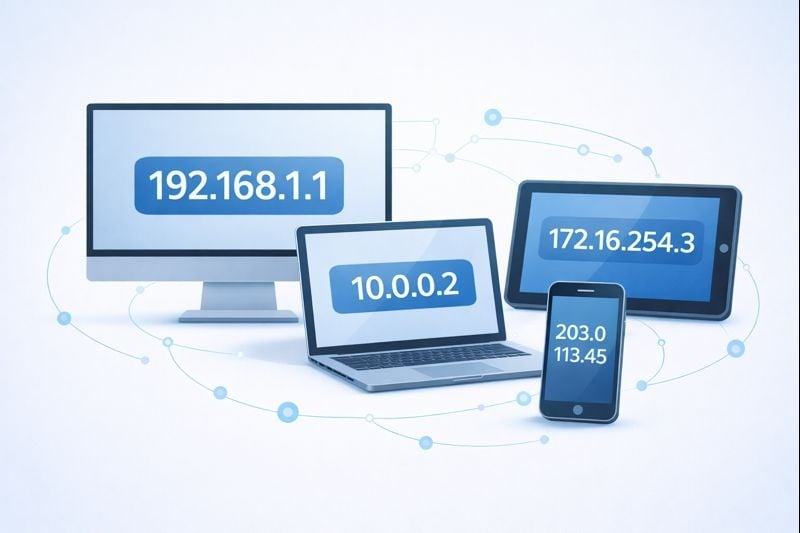
- IPv4 addresses: The traditional format that looks like 192.168.1.1, consisting of four numbers separated by periods
- IPv6 addresses: The newer format designed to accommodate more devices, looking like 2001:0db8:85a3:0000:0000:8a2e:0370:7334
Your IP address also comes in two varieties: public and private. Your public IP address is visible to websites and services you connect to online. Your private IP address is used within your home or office network. Both serve important purposes in keeping you connected.
How Your IP Address Works Behind the Scenes
When you visit a website, your device sends a request using your IP address. The website's server then sends the requested information back to your IP address. This happens in milliseconds, allowing you to browse seamlessly. Your Internet Service Provider (ISP) assigns your public IP address, which can be either static (permanent) or dynamic (changing periodically).
How to Check Your IP Address
Finding your IP address is straightforward, and there are several methods depending on what information you need.
Quick Online Method
The fastest way to check your public IP address is to use an online tool. Simply visit an IP lookup website, and your public IP address will display automatically. Many of these tools also show additional information like your approximate location, ISP name, and connection type. This method works on any device with internet access, including smartphones, tablets, and computers.
Checking Your IP Address on Different Devices
You can also find your IP address through your device settings. On Windows, open Command Prompt and type "ipconfig" to see your network details. Mac users can check System Preferences under Network settings. For smartphones, navigate to your WiFi settings and tap on your connected network to view the IP address details.
Practical Uses for Your IP Address Information
Now that you know how to find your IP address, let's explore what you can actually do with this information.
Troubleshooting Network Problems
Your IP address is essential for diagnosing connectivity issues. If you're experiencing slow internet or can't connect to certain services, checking your IP address can help identify the problem. You can verify whether you're getting a valid IP address from your router or if there's a conflict with another device on your network. Network administrators often use IP addresses to track down connection problems and optimize network performance.
Enhancing Your Online Security
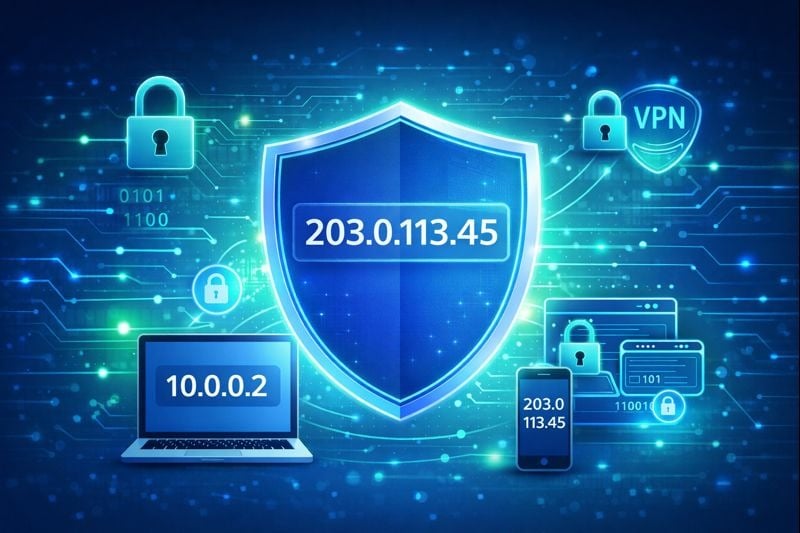
Understanding your IP address helps you take control of your online privacy. You can check if your VPN (Virtual Private Network) is working correctly by comparing your IP address before and after connecting. If they're different, your VPN is successfully masking your real location. You can also monitor for unusual activity by keeping track of which IP addresses are accessing your accounts or services.
Setting Up Remote Access
If you need to access your home computer from work or set up a home server, knowing your public IP address is crucial. You can use it to configure remote desktop connections, access security cameras, or connect to network storage devices. Just remember that exposing services to the internet requires proper security measures like strong passwords and firewall configurations.
Geolocation and Content Access
Your IP address reveals your approximate geographic location. While this helps websites provide localized content and services, it can also restrict access to certain content based on your region. Understanding this relationship helps you make informed decisions about using location-based services or tools that can change your apparent location.
Key Takeaways:
- Your IP address is a unique identifier that enables internet communication between devices
- You can easily check your public IP address using online tools or device settings
- IP addresses are valuable for troubleshooting network issues and verifying security tools
- Understanding your IP address helps you make informed decisions about online privacy and remote access
Conclusion
Knowing how to check your IP address and understanding what you can do with it empowers you to take control of your online experience. Whether you're troubleshooting a connection problem, verifying your VPN is working, or setting up remote access to your devices, your IP address is a fundamental piece of information. By regularly checking your IP address and understanding its role in your internet connectivity, you can maintain better security, solve technical issues faster, and make more informed decisions about your online privacy. Take a moment today to check your IP address and familiarize yourself with this essential aspect of your digital life.
FAQ
While your IP address alone doesn't give hackers direct access to your device, it can provide information about your general location and ISP. The real risk comes from vulnerabilities in your network security or exposed services. Protect yourself by using a firewall, keeping software updated, and using strong passwords for your router and devices.
Most home users have dynamic IP addresses that change periodically when you restart your modem or when your ISP reassigns addresses. However, some users have static IP addresses that remain constant. You can contact your ISP if you need a static IP address for hosting services or remote access purposes.
Your public IP address is assigned by your ISP and is visible to the internet. Your private IP address is used within your local network (like your home WiFi) and is assigned by your router. Devices on your network use private IP addresses to communicate with each other, while your router uses the public IP address to communicate with the internet.
Yes, you can mask your IP address using a VPN service, proxy server, or Tor browser. These tools route your internet traffic through different servers, making it appear as though you're connecting from a different location. VPNs are the most reliable and secure option for most users who want to protect their privacy online.
Websites may block IP addresses for several reasons, including geographic restrictions (content licensing), security concerns (preventing spam or attacks), or if they detect suspicious activity from that address. Some websites also block IP addresses associated with VPN services or data centers to prevent automated access or enforce regional content policies.