Knowing how to check open ports on Linux is a fundamental skill for anyone managing servers, troubleshooting network issues, or hardening system security. An open port is essentially a doorway into your system - and if you do not know which doors are open, you cannot properly secure them. Whether you are running a web server on Ubuntu, managing a VPS, or diagnosing a connectivity problem, listing open ports gives you a clear picture of what your system is exposing to the network. This guide walks through four practical methods, explains how to filter results, and shows you how to close ports you do not need.
Key Takeaways:
- The
sscommand is the modern, fastest way to list open ports on Linux. nmaplets you scan ports from an external perspective, which reveals what attackers actually see.- Use
lsofto immediately identify which process owns a specific port. - Closing unnecessary ports with
ufworiptablesis the most direct way to reduce your attack surface.
Content Table
- Why Checking Open Ports Matters on Linux
- Method 1: ss Command (Modern, Recommended)
- Method 2: netstat Command (Legacy but Still Common)
- Method 3: nmap Port Scan (External Perspective)
- Method 4: lsof Command (Process-to-Port Mapping)
- How to Filter Results by Port, TCP, or UDP
- How to Close or Block a Port with ufw or iptables
- Conclusion
- FAQ - Common Questions
Why Checking Open Ports Matters on Linux
Every service running on your Linux machine listens on one or more ports. SSH listens on port 22, HTTP on port 80, HTTPS on port 443. But after months of installing and removing software, servers often end up with ports open that nobody intentionally configured. A forgotten database daemon listening on port 5432 without a firewall rule is a real-world risk that has led to data breaches.
Checking open ports on Linux helps you:
- Audit what services are actually running and exposed.
- Troubleshoot why an application cannot connect to another service.
- Verify that your firewall rules are working as intended.
- Prepare for a security audit or penetration test.
The methods below cover both local inspection (what the machine itself reports) and external scanning (what a remote host can see). Both perspectives matter.
Method 1: ss Command (Modern, Recommended)
The ss command (socket statistics) replaced netstat on most modern Linux distributions. It is faster, more detailed, and built into the iproute2 package, which ships by default on Ubuntu, Debian, CentOS, and Fedora.
To list all open ports with their process names, run:
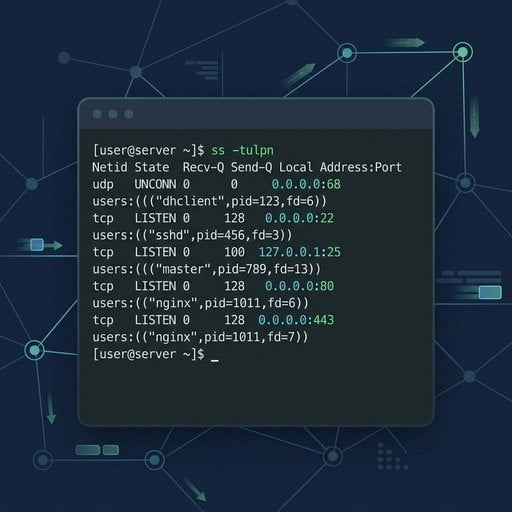
sudo ss -tulnpFlag breakdown:
-t- show TCP sockets-u- show UDP sockets-l- show only listening sockets-n- show numeric ports instead of service names-p- show the process using each socket
Concrete example: On a fresh Ubuntu server running Nginx and PostgreSQL, the output might look like this:
Netid  State   Recv-Q  Send-Q  Local Address:Port  Peer Address:Port  Process
tcp    LISTEN  0       128     0.0.0.0:80           0.0.0.0:*          users:(("nginx",pid=1234,fd=6))
tcp    LISTEN  0       128     127.0.0.1:5432       0.0.0.0:*          users:(("postgres",pid=5678,fd=5))
tcp    LISTEN  0       128     0.0.0.0:22           0.0.0.0:*          users:(("sshd",pid=910,fd=3))
Notice that PostgreSQL is bound to 127.0.0.1 only, which means it is not reachable from outside. SSH and Nginx are bound to 0.0.0.0, meaning they accept connections from any IP. This single output tells you a lot about your exposure.
For a quick reference on all ss options, see the official ss man page.
Method 2: netstat Command (Legacy but Still Common)
The netstat command is part of the older net-tools package. It is no longer installed by default on many distributions, but it remains widely used and is worth knowing - especially when working on older systems.
Install it if needed:
sudo apt install net-tools   # Debian/Ubuntu
sudo yum install net-tools   # CentOS/RHEL
To list open ports on Linux using netstat:
sudo netstat -tulnpThe flags are identical in meaning to ss. The output format is slightly different but provides the same core information: protocol, local address, port, and the owning process.
One practical limitation: on very busy servers with thousands of connections, netstat can be noticeably slower than ss. For everyday tasks on a typical server, the difference is negligible.
Method 3: nmap Port Scan (External Perspective)
The tools above show you what your machine reports internally. nmap takes a different approach - it scans ports over the network, simulating what an external attacker or remote client would see. This is critical because a firewall might be blocking a port that ss still shows as listening.
Install nmap:
sudo apt install nmap   # Debian/Ubuntu
sudo yum install nmap   # CentOS/RHEL
Scan a server from another machine on the same network:
nmap -sT -p 1-1024 192.168.1.10To scan the top 1000 most common ports with service version detection:
nmap -sV 192.168.1.10The -sV flag attempts to detect the software version running on each open port. This is useful for identifying outdated services that need patching.
Important: Only run nmap against servers you own or have explicit permission to scan. Scanning third-party systems without authorization may be illegal in your jurisdiction.
If you need to check whether a specific port is reachable from outside your network without installing nmap, our free Port Checker tool handles that instantly - no setup required.
Method 4: lsof Command (Process-to-Port Mapping)
The lsof (list open files) command treats network sockets as files, which is consistent with Linux's "everything is a file" philosophy. It is particularly useful when you need to answer the question: "Which process is using port 8080?"
List all network connections:
sudo lsof -iFind the process using a specific port (for example, port 3000):
sudo lsof -i :3000This is especially handy when a developer's Node.js application is blocking a port and you need to identify and kill the process before restarting a service.
How to Filter Results by Port, TCP, or UDP
Raw output from any of these tools can be noisy. Here are the most useful filtering patterns:
Show only TCP listening ports (ss):
sudo ss -tlnpShow only UDP ports (ss):
sudo ss -ulnpCheck if a specific port is open (grep with ss):
sudo ss -tulnp | grep :443Filter by port with nmap:
nmap -p 80,443,8080 192.168.1.10These patterns cover the vast majority of day-to-day filtering needs. For HTTP-specific troubleshooting on port 80, see our Port 80 HTTP Troubleshooting Guide.
If you are on Windows and need the same kind of walkthrough, check out our Complete Guide to Checking Open Ports on Windows 2026.
How to Close or Block a Port with ufw or iptables
Finding an open port you do not need is only half the job. Here is how to close it using the two most common Linux firewall tools.
Using ufw (Uncomplicated Firewall) - Recommended for Ubuntu
Block incoming traffic on port 8080:
sudo ufw deny 8080/tcpAllow only SSH and HTTPS, and deny everything else:
sudo ufw default deny incoming
sudo ufw allow 22/tcp
sudo ufw allow 443/tcp
sudo ufw enable
Check the current firewall status:
sudo ufw status verboseUsing iptables - For Advanced Control
Drop all incoming traffic on port 3306 (MySQL):
sudo iptables -A INPUT -p tcp --dport 3306 -j DROPSave the rules so they persist after reboot:
sudo iptables-save | sudo tee /etc/iptables/rules.v4For a deeper reference on iptables syntax and rule ordering, the official Netfilter documentation is the authoritative source.
Tip: Blocking a port with ufw or iptables does not stop the service from running - it just prevents external connections from reaching it. If you want to stop the service entirely, use sudo systemctl stop servicename and sudo systemctl disable servicename.
Conclusion
Checking open ports on Linux does not require complex tools or deep expertise. The ss command gives you a fast, reliable local view. nmap shows you what the outside world can reach. lsof pinpoints which process owns a port. And ufw or iptables lets you close anything that should not be exposed. Running these checks regularly - especially after installing new software or changing network configurations - is one of the simplest habits you can build to keep your Linux servers secure. Start with sudo ss -tulnp right now and see what your server is actually exposing.
Check Any Port on Your Linux Server - Instantly
Not sure if a port is truly reachable from the outside? Our free Port Checker tool scans your server from an external perspective in seconds - no installation, no configuration required.
Try Our Free Port Checker Tool →
FAQ - Common Questions
Run sudo ss -tulnp in your terminal. This uses the modern ss command to show all TCP and UDP listening ports along with the process name. It is faster than netstat and available by default on most current Linux distributions including Ubuntu and Debian.
Both commands show open ports and socket information, but ss is the modern replacement for netstat. It reads data directly from the kernel, making it faster and more accurate on busy systems. netstat requires the separate net-tools package, which is no longer installed by default on many distributions.
Use nmap -p PORT TARGET_IP from another machine on the network. For a quick external check without installing anything, use a web-based port checker tool. This approach tests whether the port is reachable from outside, accounting for firewall rules that local tools like ss cannot reflect.
Use sudo lsof -i :PORT or sudo ss -tulnp | grep :PORT. Both commands display the process name and PID associated with that port. The lsof method is particularly clear because it lists the command, PID, and user in a readable format.
No. Blocking a port with ufw or iptables prevents external connections from reaching the service, but the service itself keeps running. To fully stop it, use sudo systemctl stop servicename. For permanent removal, also run sudo systemctl disable servicename to prevent it from starting on reboot.